Add and organise project documents
Keep drawings, photos and agreed details with the correct job. Project documents, company documents and the private disk are separate places. A file on another disk or in another place does not appear in the current list.
Choose a place and check access
Open Documents in the project. Find company documents under Company, and Private Disk in your profile. Private disk files are not shown in project or company documents.
Viewing needs Documents and files: View. Adding files and changing their details need Documents and files: Changes. Deletion has a separate permission. You also need project access. People outside the team see assigned or shared jobs, with restrictions for internal documents. Files containing prices need permission to view amounts.
Prepare a file with a clear name. Check that the account allows saving and has document storage available. Do not put a customer's files in a practice project.
Add a file to the Kaldrix disk
- Open the correct project → Documents and select Kaldrix.
- Choose Add files. Drag in a file or select it from your device. You can add several at once.
- Check the name. If you change it, keep the extension, such as .pdf or .jpg.
- Choose Upload files and wait until every file shows Done.
- Open the document details. Check the preview and category. Use Edit details to correct its name or category.
- Add a description if useful, such as the drawing number, work stage or version.
An individual file on the Kaldrix disk can be up to 25 MB. The add-files window shows current file types and limits. Renaming an extension does not change a file's contents or fix a refusal.
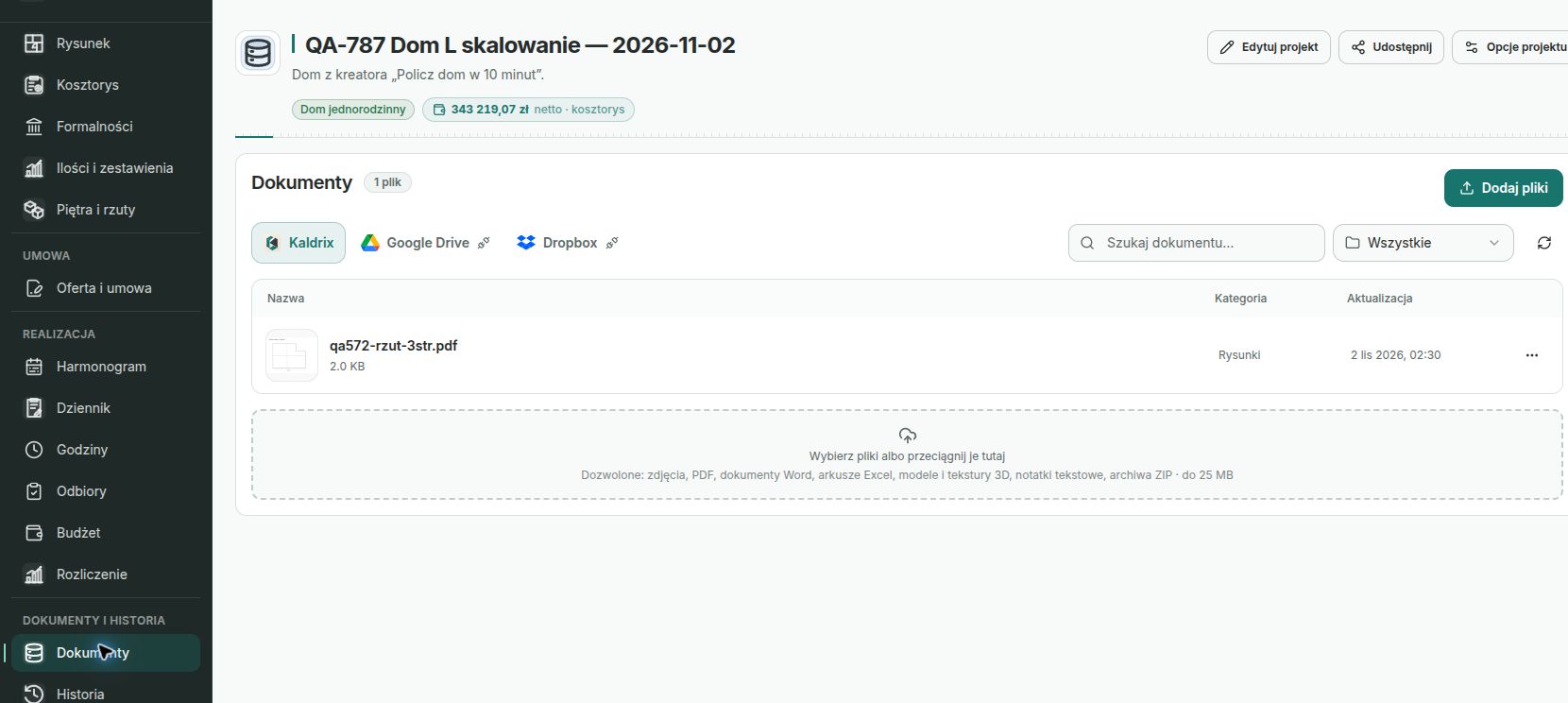
Project documents — example file
The screenshot shows the Polish interface.
Check what was saved
Search by document name and check the category filter. New files receive the category selected in the filter. Under All, they may remain uncategorised.
Photos, PDF, TXT and MD files have previews. Download a spreadsheet or Word document and open it in your own program. A missing preview does not necessarily mean the file is broken. HEIC photos are prepared as JPEG first; wait for this to finish.
Download creates a copy on your device. It does not remove the Kaldrix file. A previously saved PDF is a copy from the time it was created. After an estimate or report changes, check whether you need a new printout.
Google Drive and Dropbox
In project or company documents, choose the relevant tab and Connect disk. Create the folder if needed. After refreshing the page or changing devices, you may need to connect again.
Project access in Kaldrix does not grant access to an external folder. Its creator must share it in the chosen service. In Google Drive, Kaldrix sees files it created or copied there itself.
Copying between disks leaves the source file in place. Wait until copying finishes and keep the page open. Copies going to Kaldrix must fit the 25 MB file limit.
If a file is missing or refused
Check the company, project, disk, search and category. Read the refusal reason: file size, file type, storage space and saving permission need different actions. After an error, check the list before adding the file again to avoid duplicates.
Deletion is permanent; there is no recycle bin. Do not assume that using a document as an underlay protects it from deletion. Deleting a project also deletes its documents from Kaldrix storage.
Exercise: organise one document
Add a non-confidential PDF to a practice project. Set its category to Drawings, add a version number, find it using search and download a copy.
Check the project, name, category and that the downloaded file opens. The list should contain the one copy you intended to add.
Continue learning
Use a drawing as an underlay, review an estimate or resolve saving problems.