
Build a construction schedule and check dates
A schedule organises one project's work stages, calculates dates and shows progress. Start from an estimate, typical construction stages or an empty plan. Review each proposal with the person running the site before using it to agree deadlines.
Who this is for and what to prepare
Open a project → Construction schedule. Check More if there are many tabs. Viewing and downloading a PDF need Schedule: View. Creating and correcting the plan need Schedule: Changes. Deletion has a separate permission. The module must be available, and the account and project must allow saving.
Prepare the start date, working-day assumptions and the intended order of work. If you use an estimate, check its sections and labour. The crew size used to calculate duration is not an assignment of named workers.
Create the schedule
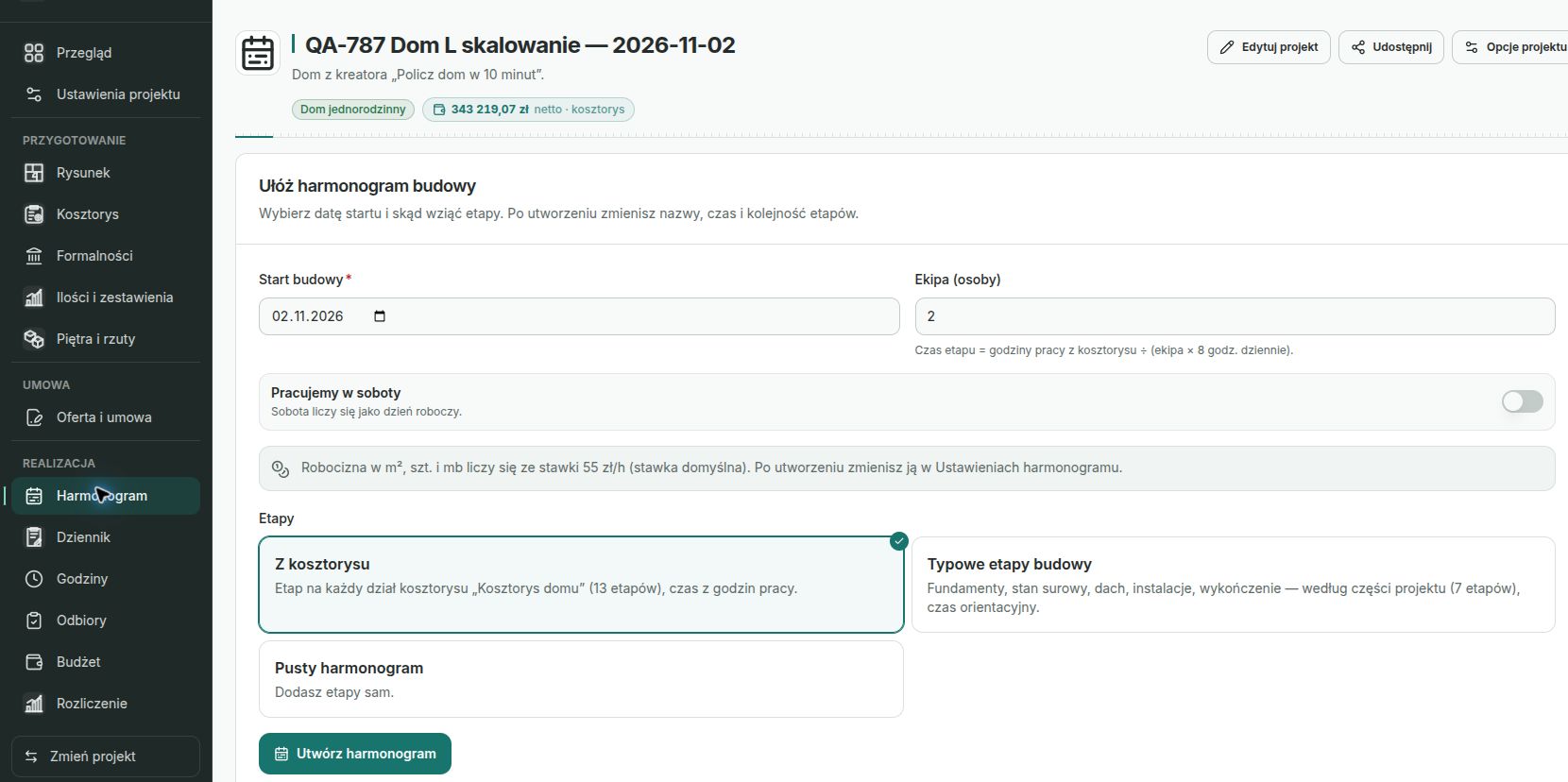
Choosing schedule stages — example project
The screenshot shows the Polish interface.
- Choose Set up the construction schedule. Set Construction start and We work on Saturdays.
- Choose the stage source. From the estimate uses sections containing items. Typical construction stages proposes stages based on project parts. Empty schedule lets you build your own plan.
- For an estimate, check Crew (people). This is a duration assumption, with 8 hours in the calculation day.
- Review proposed stages, durations, dates and the plan end. Set a realistic duration for stages marked Duration to set.
- Choose Create schedule. Looking at a proposal alone does not save it.
A project has one schedule. If it already exists, correct it instead of creating a replacement. After creation, check the stage list and timeline. Changing estimate sections does not automatically rebuild an existing schedule's stages.
Correct working days and order
Under Settings, check the start, Saturdays and Skip public holidays. Sundays are non-working days. Stage durations use working days, while timeline dates follow the calendar. A start on a non-working day moves to the next working day.
Choose Edit in a stage menu to change its name and duration. An ordinary stage waits for earlier work to finish. Alongside the previous stage starts it alongside the preceding stage. Check this setting again after changing the stage order.
Start not before sets the earliest possible date. It does not guarantee a start on that exact day. Earlier work can delay it. A text note alone does not move dates. Changing schedule dates does not change a signed agreement.
Track progress and check the result
You can enter progress manually. Stages linked to an estimate section can use completed quantities in an accepted estimate. This is a separate condition from initially creating a schedule from an estimate.
Manual 100% does not replace a signed acceptance. An accepted handover confirms the stage as completed. A log entry or recorded work hours alone do not do that. Do not treat a percentage as proof of payment.
Choose Download PDF to prepare a view for sharing. Check dates and the report date. The PDF includes all stages regardless of the list filter and is not automatically sent to the investor.
If something does not match
- Estimate source unavailable: check module access and sections with items. You can start from typical stages instead.
- Unrealistic duration: check labour hours, crew size and the rate used for calculation, or enter the duration manually.
- Missing stages: clear filters and show all stages.
- Percentage change has no effect: check the progress source and accepted handover.
Exercise: three stages in order
In a practice project, prepare three stages: preparation, work and cleaning. Set each duration, check Saturdays, change the order of two stages and then restore the intended order.
Finish when the dates match the work order and working days, and the downloaded PDF includes the full intended scope.
Continue learning
Review the estimate, collect documents or resolve access problems.