
Prepare an estimate with quantities and prices
Build an estimate using manual quantities, the building model or saved measurements. You can price a renovation without drawing it first. Start with a few items, check how they are calculated, then add the full scope of work.
What you need
Open a project → Estimates. There is no separate combined estimate list in the main menu. You need project access, the Estimates module, Estimates: Changes and Price list and amounts: View. Preparing your own price list needs additional permissions for price lists, services and components.
Prepare an active price list in the project currency. Demonstration prices are not market quotations. Replace or check them before use. The project and account must allow saving.
Create an estimate and add work
- In Estimates, choose New estimate.
- Give it a name unique within the project and select an active price list in the same currency.
- Choose Simple or Detailed. Detailed view shows labour, materials, equipment and markups. You can change the view later.
- Choose Create estimate. Add sections if helpful, such as “Preparation” and “Finishing”.
- Choose Add item and select a service from the price list. At the quantity step, choose manual entry, the building model or saved measurements.
- Check the unit, selected elements and quantity to be priced. Add the item to the estimate.
- Repeat for the remaining work. You can enter a service only in this estimate for a one-off job, without expanding the price list.
Check the quantity and net unit price in the table. An item's net amount is quantity multiplied by price. Its gross amount includes VAT. The top of the estimate shows net and gross totals.
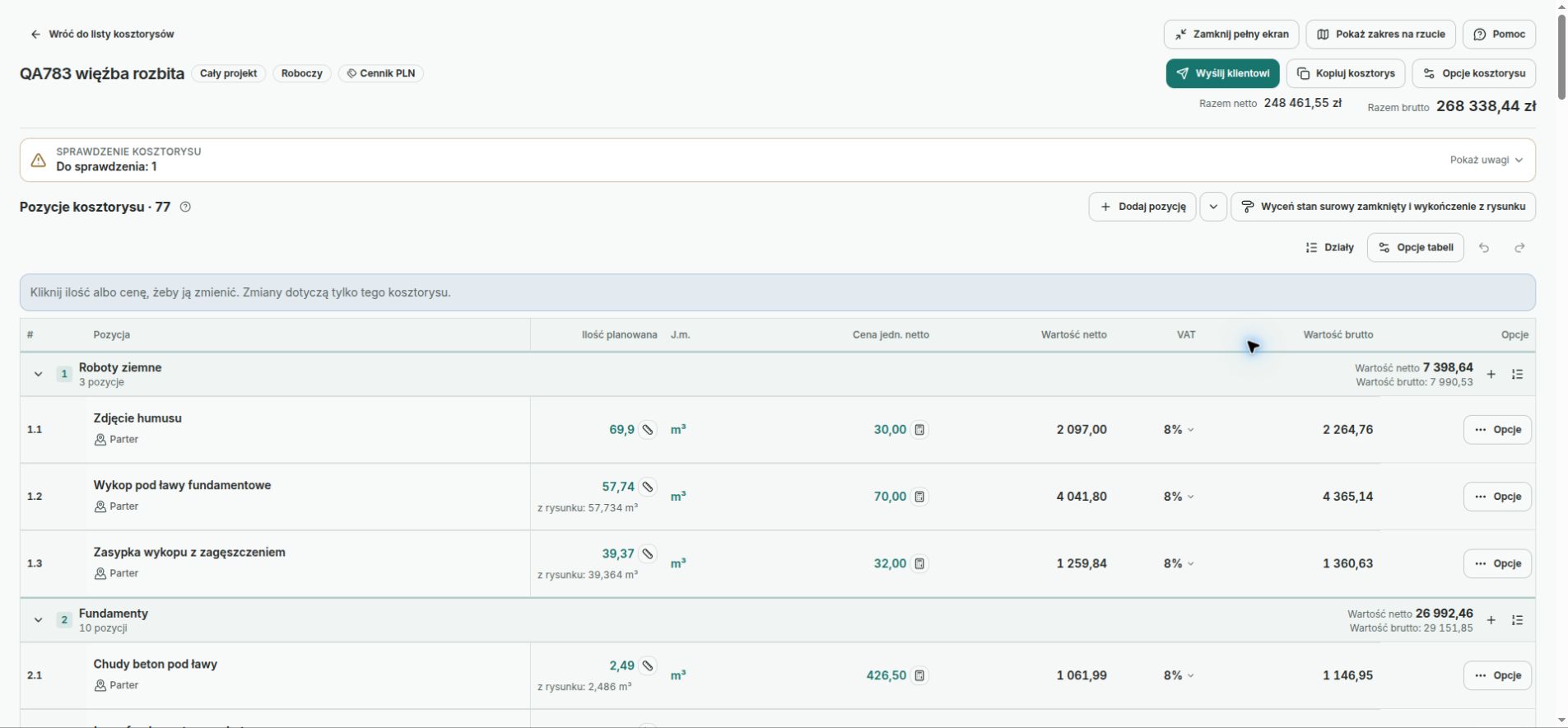
Draft estimate items — example data
The screenshot shows the Polish interface.
Check scope and amounts
Check before adding the same element with the same service again. An already in estimate label warns about counting it twice. Services can cover different quantities: one wall face, both faces, or the area after subtracting openings.
Typing a price directly into a row creates a Custom price. Such an item keeps its own settings when new prices are fetched. A changed price list does not prove that every existing estimate has received that price.
After changing the drawing, review the differences. For the relevant item, correct the scope and fetch the current quantity. Saved estimate quantities do not change automatically with the plan. See measurements and quantities for the full workflow.
Prepare the result for sharing
Under Estimate options, choose Download PDF or the detailed PDF. In the finished file, check company details, recipient, scope, quantities, VAT and total. Create a new printout after changes. An older PDF shows the earlier state.
A Draft allows item changes. An estimate Sent to customer waits for a response. An Accepted estimate remains available to view, download and copy. To change an accepted quote, create a new draft copy.
If you cannot continue
- No price list available: check that it is active and uses the correct currency.
- Amounts are hidden: check permission to view price lists and amounts.
- No model quantity option: the service needs a quantity source that matches its unit.
- Cannot change an item: check the estimate state, project lock and editing permission.
Exercise: a small estimate
Add three work items to a practice estimate. Enter one quantity manually and take another from the model or a saved measurement. Use your own prices and check one item's calculation outside the table.
You have completed the exercise when each item has the right unit and scope, no work is counted twice, and the PDF total matches the estimate.
Continue learning
Prepare a construction schedule or organise project documents. If editing is unavailable, read access problems.