Guide · Documents and teamwork
Google Drive and Dropbox: connect and copy files
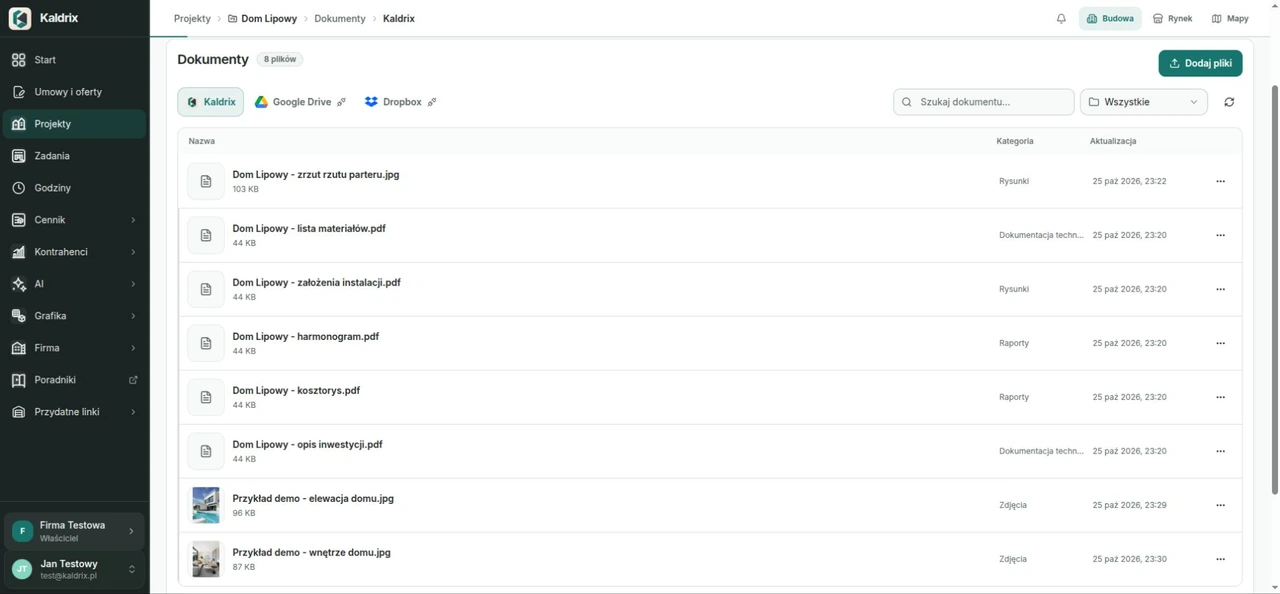
Kaldrix Disk, Google Drive and Dropbox are separate storage locations. Connecting an account lets you work with external files in project or company documents. Each person connects their own account. Project access alone does not grant access to an external folder.
1. Connect your account in the browser
Open the correct project Documents or company documents. Choose Google Drive or Dropbox, then Connect disk. In the provider window, select your account, review the consent and sign in directly with Google or Dropbox. You do not enter those passwords in a Kaldrix form.
After returning, check the connection status. Connected means the account is connected, but the folder may not exist yet. Choose Create folder in that case. You need permission to change documents. If the folder check failed, try again. Folders follow AppKaldrix / company name, or AppKaldrix / company name / Projects / project name for projects.
The connection works in the current page session. Reconnect after refreshing or on another device. Allow the sign-in popup if your browser blocks it.
2. What Kaldrix stores and where files stay
Open ? — Drives and privacy beside the disk choices for connection information. Kaldrix does not save your Google Drive or Dropbox login or password. You sign in directly with that service. You can revoke access in your provider account. Kaldrix saves which folder belongs to the company or project, including its name and location.
Permission to access the disk works in the open page. Dropbox may also use browser storage to complete sign-in between windows. If a Google thumbnail fails, its preview request may pass through the Kaldrix server. Kaldrix therefore processes the data needed for the connection.
Files uploaded to external storage stay with that provider. Connecting a disk alone does not copy files to Kaldrix Disk. Copy to Kaldrix Disk creates a copy in Kaldrix storage. Copying the other way creates a new file in the selected external service.
4. Select files and copy from Kaldrix Disk
Connect the target disk first and check its folder. Return to the Kaldrix tab. Choose List or Grid view; both views are also available on Google Drive and Dropbox. Search by name and choose a file type or category. Select files or choose Select visible files. Then choose Copy to Google Drive or Copy to Dropbox. You can also copy one file from its menu. Keep the page open until copying finishes.
Copying opens a progress window with the source and target disks. Files are copied one at a time. You can see the current file, completed file count and the Downloading or Saving stage. Choose File details to check the results: Copied or Copy failed. You can close the window when copying finishes. When finished, choose Retry failed copies to repeat only those that failed. Successful copies are not repeated.
Open the target disk tab, find the file and check its contents. The original stays on Kaldrix Disk. The copy is a separate file: later edits to the original do not update it automatically.
5. Copy to Kaldrix or between cloud services
In the Google Drive or Dropbox tab, search by name or choose a file type. Select individual files or all visible files, then choose Copy to Kaldrix Disk. Wait for completion, open the Kaldrix tab and check the copies. Kaldrix file type rules, write access and available storage apply.
You can also copy from Google Drive to Dropbox and from Dropbox to Google Drive. Connect both disks, choose the other disk as the target on the source file and check the result at the destination. The source stays in place. This is a one-off file copy, without automatic folder synchronisation. Native Google files are exported: documents to DOCX, spreadsheets to XLSX, presentations to PPTX and other supported Google types to PDF. Check the exported copy’s layout.
6. Limits and missing files
Browser copying has a 50 MB limit per file. Copying to Kaldrix Disk also applies its upload limit: 25 MB by default; check the current limit and file types in the upload dialog. Direct Dropbox upload has a separate limit below 150 MB; this does not increase the copying limit between disks.
If copying fails, check the connection, folder permissions, file size and target storage space. Check whether a copy already exists before retrying. For a file over the copying limit, download it and upload through the provider website; prepare a file within the Kaldrix limit when using Kaldrix Disk.
If Google does not show a file added outside the app, check the drive.file restriction. Signing in again alone does not resolve it. Upload or copy through Kaldrix when the file needs to be available in the app.
Check before the next step
- Check the account, company, project and folder before copying.
- Share the folder in the provider service; account for Google’s drive.file restriction.
- Open the target copy and check that the original remains.
Step-by-step exercise
Copy a small file in all six directions
What you will do
Check connections, storage locations and preservation of the original.
Practice example
Use a practice project. Prepare a TXT or PDF below 1 MB containing “Kaldrix disk test”, without customer data. Upload it to Kaldrix Disk first. Use a distinct name for each attempt.
Prepare before you start
- Google and Dropbox accounts you can use for practice.
- Project document access, write permissions and space on every disk.
- Both disks connected with accessible folders; internet and the page kept open until copying finishes.
In the print window, choose Save as PDF if your browser provides that option. Check the page preview before saving.
Follow these steps
Kaldrix → Google Drive
- Open the Kaldrix tab and select the practice file. Check that the target Google Drive disk is connected and its folder is accessible.
- Choose copying to Google Drive on the file. Wait for completion, open the destination and compare the contents.
Expected result: The target contains a copy with the correct contents, and the source still exists.
If you get stuck
If the copy is missing, check the folder and connection. Refresh the list before retrying to avoid duplicates. Account for Google’s drive.file restriction.
Google Drive → Kaldrix
- Open the Google Drive tab and select the practice file. Check write access and free space on Kaldrix Disk.
- Choose copying to Kaldrix on the file. Wait for completion, open the destination and compare the contents.
Expected result: The target contains a copy with the correct contents, and the source still exists.
If you get stuck
If the copy is missing, check the folder and connection. Refresh the list before retrying to avoid duplicates. Account for Google’s drive.file restriction.
Kaldrix → Dropbox
- Open the Kaldrix tab and select the practice file. Check that the target Dropbox disk is connected and its folder is accessible.
- Choose copying to Dropbox on the file. Wait for completion, open the destination and compare the contents.
Expected result: The target contains a copy with the correct contents, and the source still exists.
If you get stuck
If the copy is missing, check the folder and connection. Refresh the list before retrying to avoid duplicates. Account for Google’s drive.file restriction.
Dropbox → Kaldrix
- Open the Dropbox tab and select the practice file. Check write access and free space on Kaldrix Disk.
- Choose copying to Kaldrix on the file. Wait for completion, open the destination and compare the contents.
Expected result: The target contains a copy with the correct contents, and the source still exists.
If you get stuck
If the copy is missing, check the folder and connection. Refresh the list before retrying to avoid duplicates. Account for Google’s drive.file restriction.
Google Drive → Dropbox
- Open the Google Drive tab and select the practice file. Check that the target Dropbox disk is connected and its folder is accessible.
- Choose copying to Dropbox on the file. Wait for completion, open the destination and compare the contents.
Expected result: The target contains a copy with the correct contents, and the source still exists.
If you get stuck
If the copy is missing, check the folder and connection. Refresh the list before retrying to avoid duplicates. Account for Google’s drive.file restriction.
Dropbox → Google Drive
- Open the Dropbox tab and select the practice file. Check that the target Google Drive disk is connected and its folder is accessible.
- Choose copying to Google Drive on the file. Wait for completion, open the destination and compare the contents.
Expected result: The target contains a copy with the correct contents, and the source still exists.
If you get stuck
If the copy is missing, check the folder and connection. Refresh the list before retrying to avoid duplicates. Account for Google’s drive.file restriction.
Several files at once
- Prepare two small practice files on Kaldrix Disk, such as TXT and PDF. Find them using a shared part of their names. Check List and Grid views. Check the File type filter, return to All types and choose Select visible files.
- Choose Copy to Google Drive or Copy to Dropbox. In the progress window, check the source and target disks, current file, completed file count and the Downloading and Saving stages. Choose File details and check the results. When finished, choose Close and open both copies on the target disk.
Expected result: Both files show Copied. Copies are on the target disk, and sources remain on Kaldrix Disk.
If you get stuck
If a copy fails, check the connection, folder access and disk space. When finished, choose Retry failed copies. Successful files are not copied again.
Check your work
- For each direction, you opened the copy and compared it with the source.
- Sources remain in place. You do not expect copies to update automatically.
- You checked reconnection after refreshing the page.
- You checked filters, selecting visible files and the results of copying several files.
Common obstacles
No folder access
Check the selected account and provider sharing. Kaldrix project access is not enough.
File missing from the Google list
Use a file uploaded or copied through Kaldrix; a file added outside the app may be outside drive.file access.
Next exercise: Project collaboration: set the right team access →