Guide · Documents and teamwork
Kaldrix permissions: scopes, templates and access
A permission scope defines what a person can do in a Kaldrix area. A template groups those permissions for assignment to a person. Project access defines which projects they can work on. Check these settings separately.
1. What a permission scope means
A scope allows a specific action in a specific area. For example, documents.read allows viewing documents, while documents.write allows adding and editing them. In the app, you select readable access levels instead of typing these names.
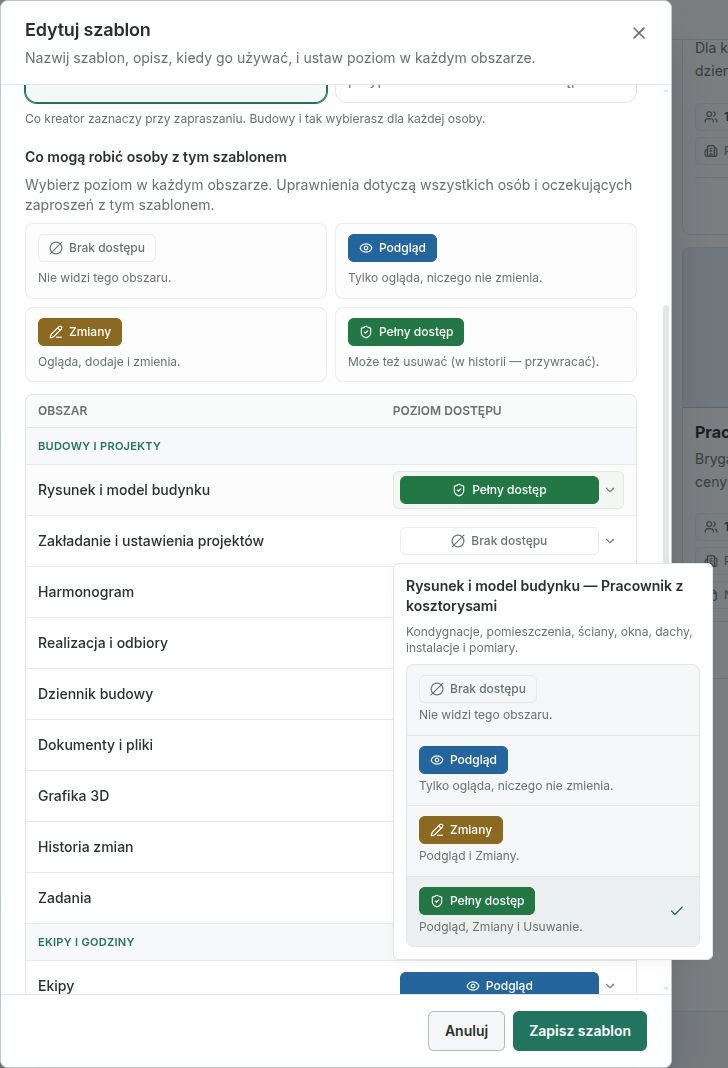
No access means the person cannot use that area. View allows reading. Edit includes viewing, adding and editing. Full access also allows deletion; in Change history it allows restoring. Edit alone does not allow deletion.
Areas are separate. You can allow someone to edit Documents and files while giving them only View for Estimates. Creating and configuring projects is separate from Building drawing and model: drawing walls alone does not allow creating or deleting an entire project.
2. A template is a shared set of permissions
Each person except the owner has one template in a company and exactly its permissions. A template has a name, a When to use description, an optional note, area levels and suggested project access. Creating a template does not change anyone’s access until you assign it.
A new company receives its own Administrator, Site manager, Worker and Guest templates. You can edit, copy and delete them. A name does not guarantee the contents: if you edit Administrator, the saved permissions determine access. Check them before assignment.
For example, create “Documents — changes” with Edit for documents and no deletion. Name it after the actual task. Templates belong to each company separately; the same person may have different permissions in another company.
3. Templates and project access answer different questions
All sites provides access to current and future company projects within the template’s permissions. Selected sites limits a person to projects assigned or shared with them. This also serves people outside the team, such as guests or external contractors. In some areas, they see only information related to their own work and crews.
The template suggests project access during assignment, but a person’s current projects are their own setting. Changing the template’s suggestion does not switch existing members or invitations to all projects or change their lists.
For example, two people with the same template can work on different selected projects. Giving document View access does not share Google Drive or Dropbox folders automatically. Set external folder permissions with the provider.
4. Create a template and compare its permissions
On a company account, open Company → Team → Templates. Choose New template or Make a copy on a similar template. You need the Edit level in Team and permissions.
Enter a unique name up to 60 characters. Fill in When to use and an optional note, up to 500 characters each. A company can have up to 50 templates, including the four starting templates.
The permissions table shows grouped areas. None has a neutral label, View a blue background, Edit an amber background and Full access a green background. The level choices use the same colours. Click a level to read the area description and what each level allows. Unavailable options have neutral labels with a reason. On a phone, the list opens in a separate window. Choose the levels and suggested project access, then click Save template.
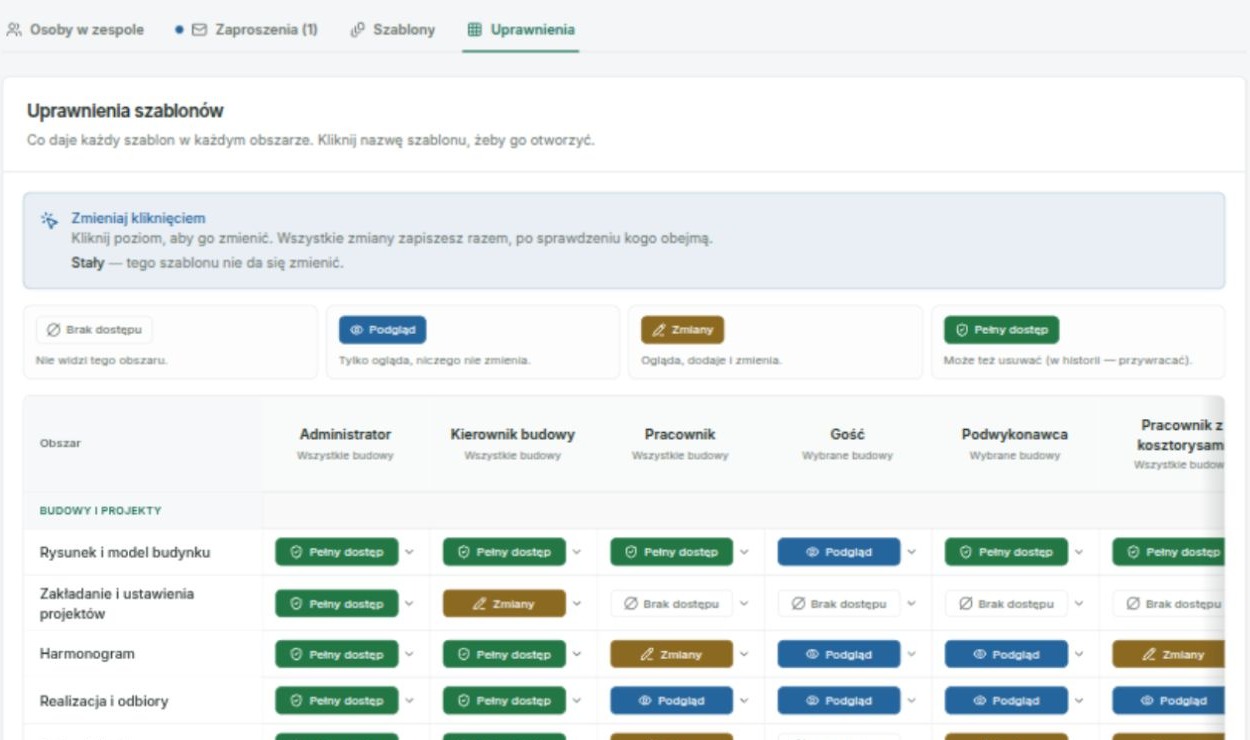
Use the Permissions tab to compare templates: areas are rows and templates are columns. If you can edit, click a cell’s level. Save changes saves the selected edits together; check the affected member and invitation counts before confirming. On a phone, you can view one template and compare it with another. If saving several templates fails, check their saved state: earlier edits may already have been saved.
5. Change access for one person or a whole group
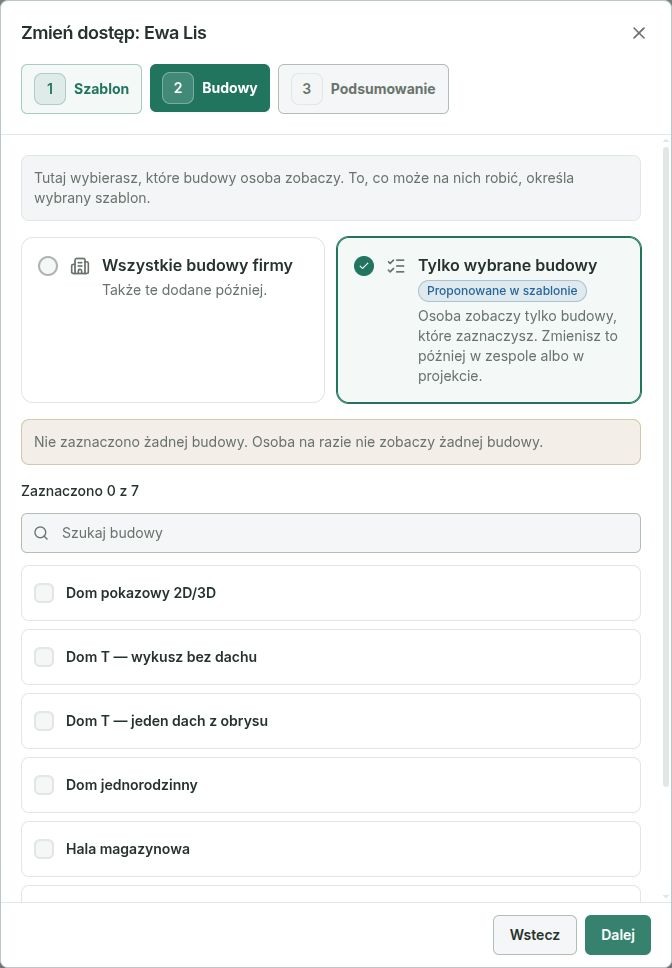
For one person, open Company → Team → Team members. Choose Change access on the person, select a template, check All sites or Selected sites and select the correct projects. Review the summary and save. Customize this template in the wizard creates a separate company template.
To change permissions for everyone using a template, edit that template or its cells in the Permissions tab. The change also affects pending invitations using it. Check the affected people before saving; editing a used template changes more than one person’s personal settings.
Invite a new person with the chosen template and project access. An invitation from a specific project grants only that project. Do not send invitations as part of practice; first create and compare an unused template.
6. Revoke access and check the result
The system No access template keeps the person in the company but removes their access to company data and projects. You cannot edit or delete it. It also clears earlier project assignments and shares. To restore someone’s work access, assign the appropriate template and set their projects again.
When deleting a company template in use, select a replacement for its members and invitations. Without another choice, they move to No access. Changing an area level and deleting a template are different operations; read the summary before confirming.
Remove from company removes membership itself and requires Team and permissions: Delete. Restoring membership requires a new invitation. Revoked scopes are checked on subsequent requests; refresh the view if the menu still shows the previous state. You do not need to wait for the old sign-in to expire.
7. Why a button or template is unavailable
The owner has all scopes and projects. Other people can grant only permissions they hold themselves and need permission to change the team. You cannot change a person or template with broader permissions than yours. A person limited to selected projects cannot grant access to all projects. Ask the owner or an authorised person to make that change.
Even Full access does not purchase features. The plan, enabled module, person’s scopes and access to the specific project still apply. A broader template does not unlock a feature outside the plan. Personal accounts do not support team invitations; collaboration requires a company account.
Administrator is a template, while Owner is a separate status. Subscription management, currency and modules remain with the owner. Invoices, KSeF and site settlements have their own permissions. An AI connector cannot grant a person broader rights than their Kaldrix access; connecting AI alone does not unlock data or features.
Check before the next step
- Check the company, template permissions and the person’s project access.
- Check all members and pending invitations before editing a template in use.
- Create a separate template for an individual exception; verify actual access after saving.
Step-by-step exercise
Practise a template without changing team access
What you will do
Compare levels, save a separate template and distinguish permissions from project access.
Practice example
Use a practice company account or an unused template. Do not edit a shared Administrator or Worker template just to test a control.
Prepare before you start
- A company account with permission to edit the team and grant the selected levels.
- Capacity for a new template, a unique name and no members or invitations assigned to it.
In the print window, choose Save as PDF if your browser provides that option. Check the page preview before saving.
Follow these steps
Check the company and your access
- Select the company account. Open My profile → Profile → Your companies and check your template.
- Open Company → Team. Establish whether you can view and edit templates.
Expected result: You know which company you are working in and who can save changes.
If you get stuck
If team or edit controls are missing, check the account type, plan and permissions with the owner.
Compare two templates’ levels
- In Permissions, compare two templates for Documents and files. Do not save any edits yet.
- Check which allows viewing, editing and deletion.
Expected result: You distinguish View, Edit and Full access using the company’s actual templates.
If you get stuck
On a phone, select the first template and use Compare with. Check the contents rather than its name.
Create an unused practice template
- In Templates, choose New template. Use a unique name such as “Practice — documents” and state that it is not ready for assignment.
- Set Documents and files to View and suggest Selected sites. Leave other areas at No access. Save the template.
Expected result: A separate practice template exists. Nobody received it automatically.
If you get stuck
If saving fails, check permissions, duplicate names and the template limit. Do not edit a used template instead.
Edit only the practice template
- Check that its member and invitation counts are zero. Change Documents and files to Edit.
- Read the impact summary and save. Reopen the template and read the saved level.
Expected result: The template allows adding and editing documents, without deletion. No person’s access changed.
If you get stuck
If anyone already uses the template or has an invitation with it, stop and create a different unused template.
Prepare project selection separately
- Write down what an example collaborator needs to do and which two projects they should see. Compare this with the practice template.
- Decide whether View in Building drawing and model is also needed. Do not send invitations or change a real person’s access in this exercise.
Expected result: You have separate notes for actions and project selection. You know the template does not share Google or Dropbox folders.
If you get stuck
If the person needs only some projects, do not choose All sites for convenience.
Review the change before use
- Reopen the practice template and compare the saved levels with your notes. Check that nobody uses it yet.
- Agree with the owner who might receive it after practice. For an individual exception, choose a separate template rather than editing a shared one.
Expected result: You have a checked permission set and understand the impact of later edits.
If you get stuck
This exercise does not verify another person’s account. After real assignment, check visible projects and allowed actions with that person.
Check your work
- You read the saved levels and checked that document deletion is excluded.
- The template still has no members or invitations; actual team access is unchanged.
- You have separate notes for the example person’s actions and projects.
Common obstacles
A level is unavailable
You cannot grant more than you hold. Check the reason shown and ask the owner to review it.
Saving the table failed
Check each edited template’s saved state. Earlier templates may have saved; a later failure does not undo them.
Next exercise: Crews and site progress: connect the plan to daily work →