Guide · Site work
Crews and site progress: connect the plan to daily work
A useful schedule needs named people and current information. Planned work, recorded hours and completed scope answer different questions. Keep them clear and linked to the same project.
1. Assign a crew to a real work stage
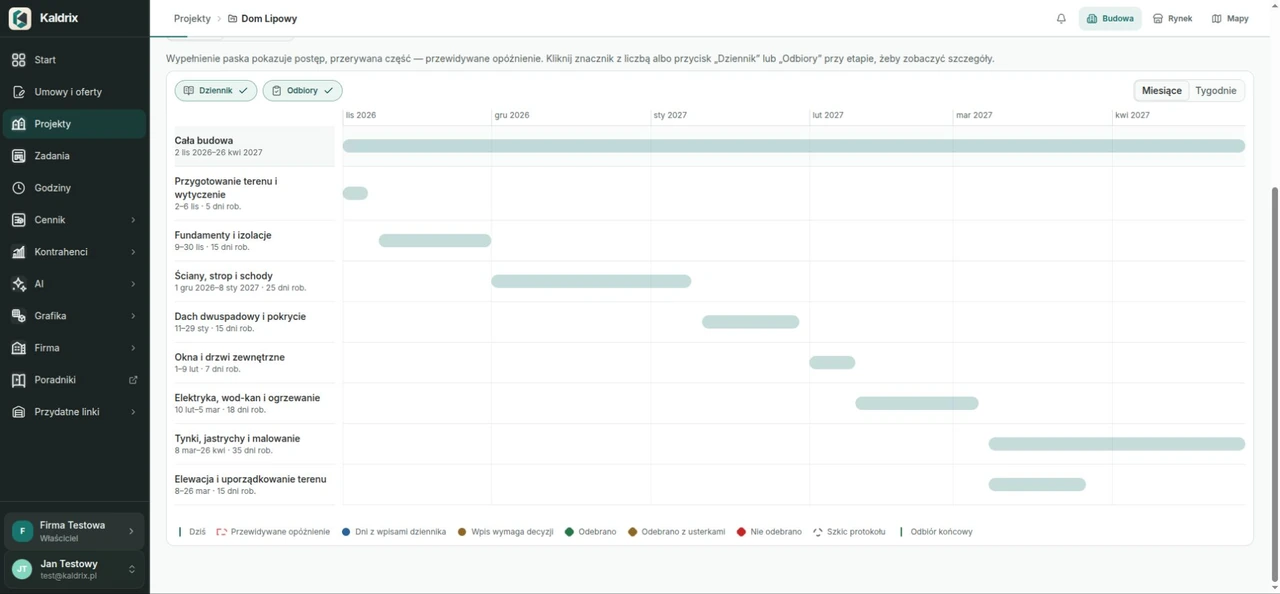
Create schedule stages and check their order and dates. Start from estimate sections, typical stages or an empty plan. Compare suggested durations with actual conditions on site.
Assign a crew to the stage. In the company work plan, check other projects, unassigned stages and date conflicts. An overlap warning calls for a decision; it does not move people for you.
2. Record time against the work location
In working hours, choose the day, project and, if needed, stage. Check whether the entry is for one person or a whole crew. Hours per person and the number of people determine total person-hours.
Add a short note if it will help explain the work later. Review rates with someone who can access amounts. Missing rates can leave labour costs incomplete.
3. Keep hours separate from completed work
After work, update stage progress and tasks. An eight-hour entry does not automatically mean that the work is finished. Add a photo or project log entry when it helps support the progress update.
Use the Completed view in the estimate to record quantities actually carried out. Schedule progress percentages and completed metres are separate records. Review both before acceptance and partial settlement.
Check before the next step
- Check crew assignments and overlapping dates.
- Confirm the day, project and number of people in time entries.
- Record progress and completed quantities in the right places.
Step-by-step exercise
Exercise: assign a crew and record the day’s work
What you will do
Connect a stage, crew and hours, then record progress separately.
Practice example
In “Pavilion — training”, a two-person crew works on a practice stage called “Sample wall”. Use 2 hours per person and 25% progress. These are training figures, not a site settlement.
Prepare before you start
- A training project with a schedule and a “Sample wall” stage, without customer data.
- Access to Construction schedule and Work hours, with permission to change schedules and crews and record time for a crew. If unsure, work with the training company owner.
- An internet connection and an agreed date for the practice stage.
In the print window, choose Save as PDF if your browser provides that option. Check the page preview before saving.
Follow these steps
Check the stage and dates
- Open “Pavilion — training” → Construction schedule.
- Find “Sample wall”. Check its start, finish and progress source. For this exercise, choose By hand in Progress source.
Expected result: You have the right stage, agreed dates and manual progress.
If you get stuck
If you cannot change the stage, check Schedule: Changes and whether the project allows saving. Do not change a real site stage for this exercise.
Add a two-person training crew
- Open Company → Crews and choose Add crew. Name it “Training crew”.
- Do not enter real personal details. Choose Enter the number of people, enter 2 and save the crew.
Expected result: The list contains a training crew with 2 people, ready for assignment.
If you get stuck
If this crew already exists, check and reuse it rather than creating a duplicate. Do not link it to a real subcontractor.
Assign the crew to the stage
- Return to the stage and open its crew section → Assign crew. Choose “Training crew”.
- Keep the dates linked to the stage, choose the whole crew and check the dates and headcount preview. Select Assign.
Expected result: The stage has the two-person crew, with dates linked to the stage.
If you get stuck
If a conflict appears, compare the other assignments before saving. A warning does not mean Kaldrix moved the people or resolved the overlap.
Find the assignment in the company work plan
- Open Company → Work plan and choose a period that covers the exercise dates.
- Find the crew’s assignment to “Pavilion — training”. Open it and compare the stage, dates and headcount.
Expected result: You can find the same assignment in the site schedule and Work plan.
If you get stuck
If the list is empty, check the period and your permissions. On a phone, Work plan shows weeks; a person outside the team sees only their own scope.
Record 2 hours for each of two people
- Open the project’s work hours or Hours in the menu. Choose the exercise day, project, stage and crew.
- Enter 2 hours per person and 2 people. Check the total of 4 person-hours, add “Training” as a note and save.
Expected result: The time entry has the right day and stage and shows 4 person-hours.
If you get stuck
If you can only record your own time, do not choose another person or crew. Recording for others requires broader Work hours permission; ask the trainer for a suitable training account.
Record progress separately and compare the results
- Return to the stage, choose Progress and set 25%. Save the change.
- Reopen the schedule and hours. Compare the 25% progress with the 4 person-hours entry.
Expected result: The stage shows 25% and the time register shows 4 person-hours. Neither figure replaces the other.
If you get stuck
If progress comes from an estimate or acceptance, do not override it without agreement. Use a manual-progress training stage. A time entry does not confirm completion of the stage or payment.
Check your work
- The crew has 2 people, the right stage and checked dates.
- You can find the same assignment in Work plan and identify any conflicts.
- The saved 4 person-hours and separate 25% progress remain visible after reopening.
Common obstacles
The assignment moved when the stage dates changed.
Check whether its dates follow the stage. Use independent dates only after checking headcount and other sites.
Hours are saved, but progress has not increased.
These are separate records. Check the progress source, then set manual progress or update the source the stage uses.
The hours cost is empty or too low.
Ask someone who can see amounts to check the rates. Do not invent a rate just to make a cost appear.
Next exercise: Kaldrix on your phone: check the project and record decisions →