Guide · Quantities and quotes
From quantity takeoff to quotation: connect quantities and prices
A number of metres does not tell you what a job should cost. You need a service description, unit, components and price. Connect them to quantities, then review the document your customer will see.
1. Define what a service includes
Prepare services you actually use in your price list. Names should distinguish preparation, installation and finishing. Check the unit and whether the price covers labour only or materials and equipment as well.
Set component consumption and prices. A service with only a fixed price does not necessarily produce a detailed shopping list. Material purchases need a defined material breakdown.
2. Connect the service to the right scope
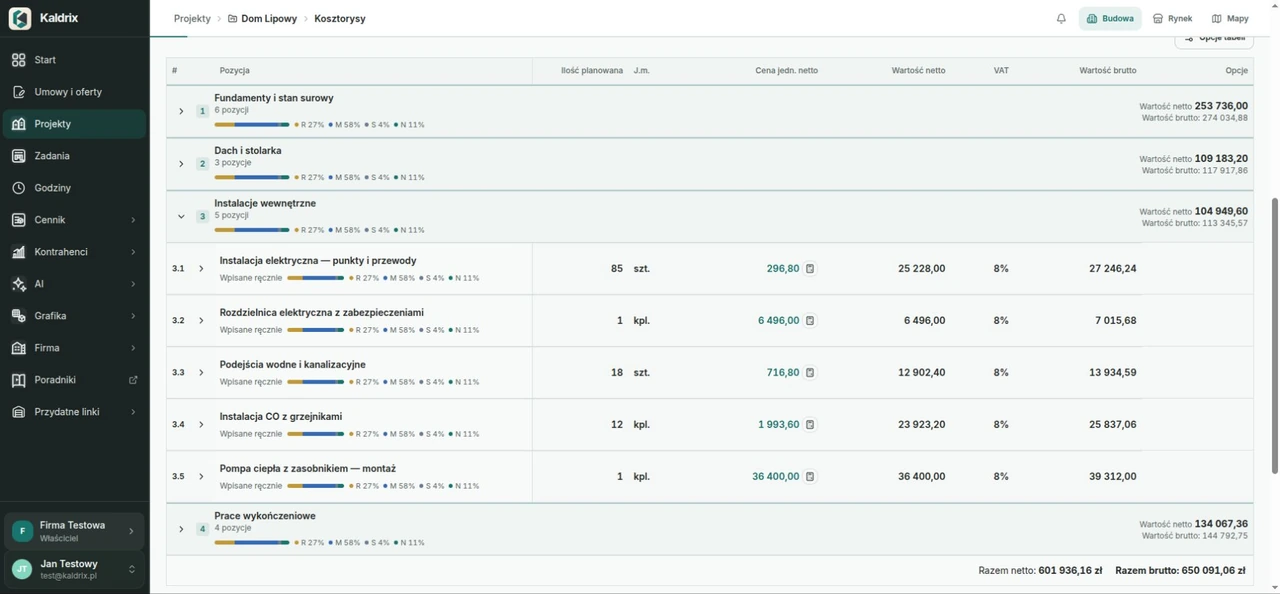
Add estimate items and choose model quantities, saved measurements or manually entered amounts. Group work into sections, for example by stage or floor. Make the scope of each item clear.
Check estimate updates after drawing changes. Look for missing prices, repeated scopes and mismatched units in similar services. Internal delivery costs and customer prices serve different purposes. Review both.
3. Read the quotation as your customer would
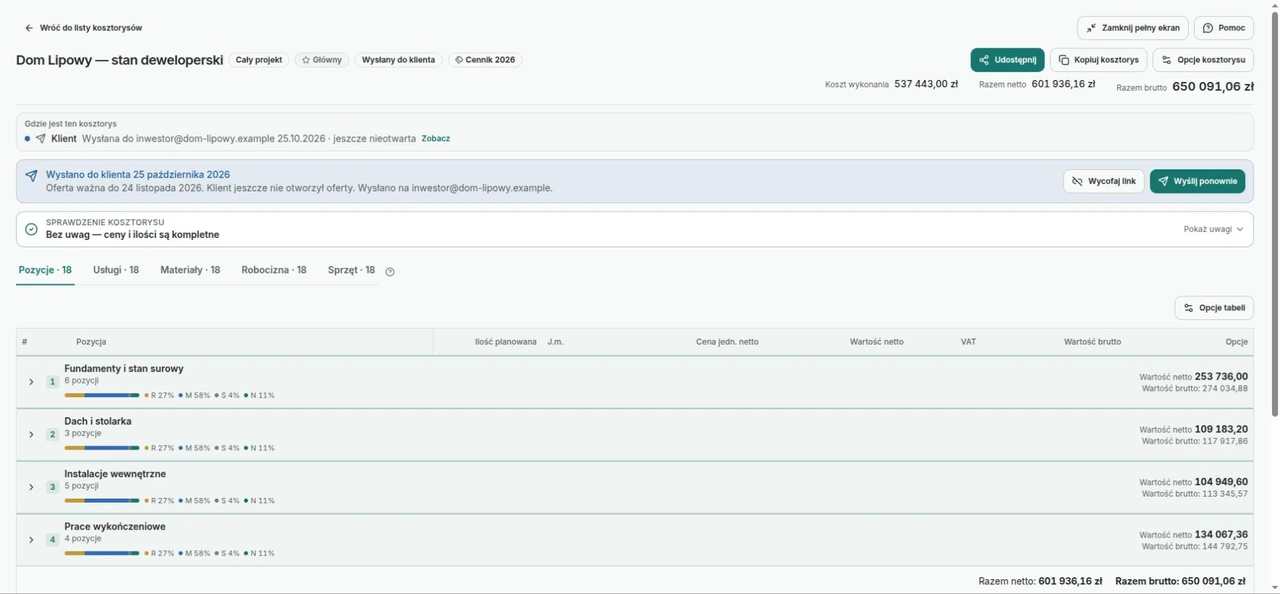
Before preparing a PDF or sharing a quotation, check the customer, scope, quantities, prices and notes. State exclusions and assumptions that need agreement. The customer should be able to point to a specific item when asking for a change.
When the scope changes, prepare an updated version and agree it with the customer. Editing the estimate alone does not settle a change in payment. Keep the agreed details with the same project.
Check before the next step
- Check materials, labour and units.
- Compare quantities with the latest drawing.
- Review the document before giving it to your customer.
Step-by-step exercise
Prepare an estimate and review the customer quotation
What you will do
Connect one service to a model quantity or saved measurement, review components and price, then prepare a document suitable for a customer.
Practice example
Price the practice flooring area from the previous exercise. Use your own cost data and clearly mark the document as practice. Do not send it to a real customer.
Prepare before you start
- Available Estimates and Price list features, permission to edit them and view amounts, and suitable access to service breakdowns and components.
- A checked m² takeoff and an active price list in the project currency.
- Your own example material and labour data. Exercise values are not market price guidance.
In the print window, choose Save as PDF if your browser provides that option. Check the page preview before saving.
Follow these steps
Prepare a service with the right quantity source
- Open Price list → Price lists, choose a list, then Services → Add service. Enter a clear name such as “Floor installation — practice”.
- Choose the floor area rule as the project quantity source. For work without a model, choose to enter the quantity in the estimate and check the unit.
Expected result: The service has a defined scope and a unit matching the quantity you will price.
If you get stuck
If the service already exists, review its settings rather than adding the same name again. Do not choose wall area just because it also uses m².
Add a checked service breakdown
- Add labour and material components using your own data. For a material in m² and a service in m², check consumption per service unit and any necessary waste allowance.
- If material is sold in bags or packs while the service uses m², do not pretend the units match. Use quantity entered in the estimate or a fixed quantity and check actual consumption. Save the service.
Expected result: You understand which components create the cost and service price. Units and consumption rules are deliberately chosen.
If you get stuck
A service without components may have a zero price. You can set a custom item price in the estimate, but a price without a breakdown will not create a material shopping list.
Create a practice estimate
- In the project, open Estimates → New estimate. Give it a unique name and choose an active price list in the project currency.
- Choose a Simple or Detailed view for your work and create the estimate. Add a section for the practice stage if useful.
Expected result: You have an empty estimate with an identifiable name and correct currency.
If you get stuck
If the price list is missing, check activity, currency and access. Do not change project currency without considering other documents.
Add one item with a checked quantity
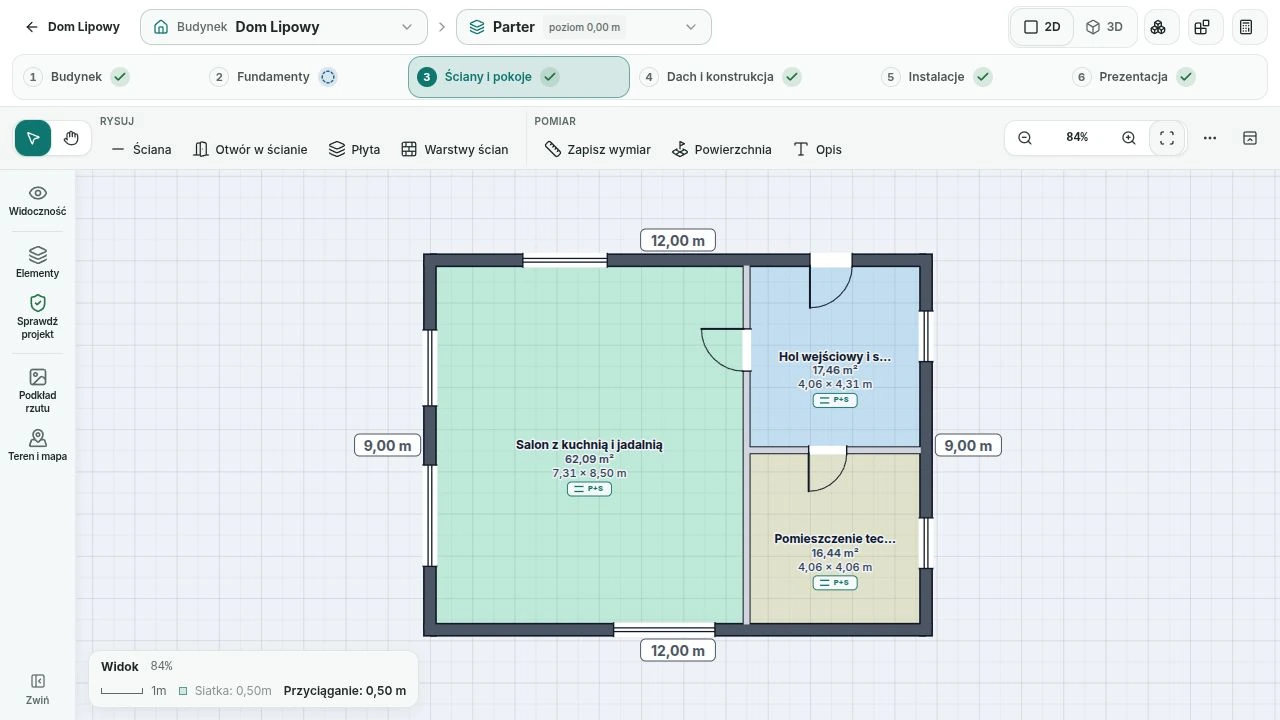
- Choose Add item and the prepared service. In the quantity step, use the building model or saved takeoffs and select only the practice area.
- Check the quantity to price, unit and any required component quantities. Add the item to the estimate.
Expected result: One item covers the right area and matches the takeoff checked earlier.
If you get stuck
An “already in the estimate” mark warns that the same service covers the element. Do not add both a whole slab and its room for the same flooring work.
Check cost, price and completeness
- Read the item from its name to its amount. Check quantity, price, components, markup and the VAT rate appropriate to your work.
- Check quantity and price updates. A later price list change does not automatically replace saved estimate prices.
Expected result: You can explain the item value and distinguish delivery cost from selling price.
If you get stuck
For missing cost or price data, return to the breakdown and missing prices. Do not hide incomplete data by entering an arbitrary final total.
Prepare the right version for its recipient
- In estimate settings, review the investor PDF quotation section: recipient, number, validity and payment terms.
- Choose the customer-facing export. Open it and check scope, amounts and draft marking. A detailed PDF or full working spreadsheet can contain internal costs.
Expected result: You have reviewed a practice document with a clear scope, without accidentally disclosing internal costs.
If you get stuck
If the PDF is empty, add items first. For a customer document, check the export type and contents rather than only its file name.
Compare the quotation with materials to buy
- To practise purchases, check the correct main estimate and open the project materials-to-buy list.
- Compare material quantities with the service breakdown. Check waste allowances and whole packs. Do not mark actual purchases using practice data.
Expected result: You distinguish customer work quantities from material order quantities and know which estimate supplies the list.
If you get stuck
For an empty list, check the source estimate and material components. A custom item price alone does not say what must be bought.
Check your work
- One item has a checked quantity source and component breakdown.
- You distinguish cost from selling price.
- You reviewed the customer document and did not send a practice quotation.
Common obstacles
Quantity or price stayed the same after I corrected the source.
Check estimate update information. Model and price list changes need a review of saved items; compare their effect before accepting updates.
The total is right, but the shopping list is incomplete.
Check item components rather than just the selling price. Materials need explicit quantities and units.
I want to practise sharing a quotation link.
Check that Customer quotations are available and you can edit estimates. Read the settings before sending or copying a link. Reviewing the right PDF locally is enough for this exercise.
Next exercise: Crews and site progress: connect the plan to daily work →